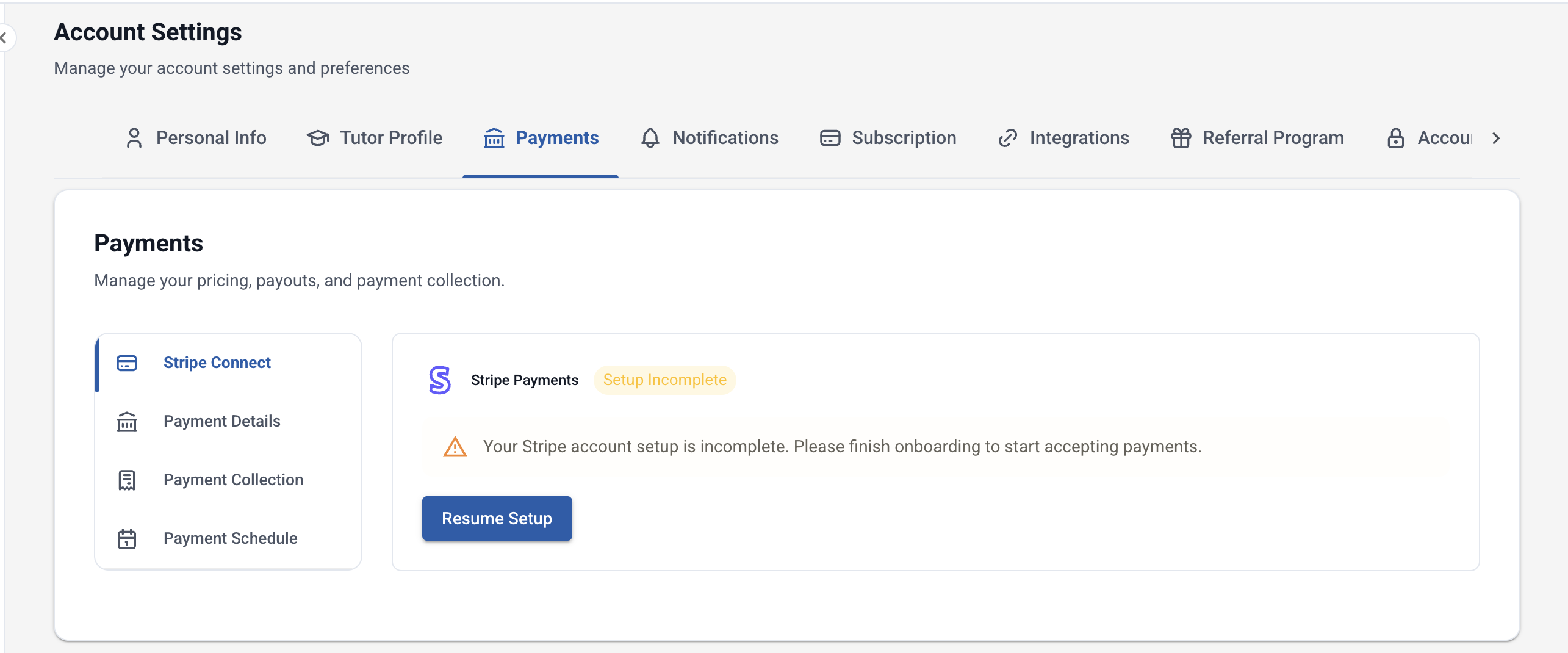
Stripe Connect Setup
Connect a Stripe account to Voila so students can pay you directly for lessons, packages, and recurring sessions.
Connecting Your Account
- Go to Settings → Payments (or Admin → Stripe Connect).
- Click Connect Stripe.
- You are redirected to Stripe's hosted onboarding flow.
- Sign in to an existing Stripe account or create a new one.
- Complete identity verification and bank account setup as prompted by Stripe.
- Once finished, you are redirected back to Voila with your account connected.
Your Stripe Connect status is visible in Settings → Payments and on the Admin page.
Verification Requirements
Stripe requires identity verification before you can receive payouts. This typically includes:
- Legal name and date of birth
- Address
- Bank account or debit card for payouts
- Government-issued ID (in some countries)
Verification is handled entirely by Stripe. Voila does not store or process your identity documents.
After Connecting
Once connected:
- Students who view your profile or chat with you can book and pay through Stripe.
- The payment mode for new student relationships defaults to Stripe.
- You can change the payment mode per-student to External or No payment if needed.
Disconnecting Stripe
You can disconnect your Stripe account from Settings → Payments. Restrictions apply:
- You cannot disconnect while there are pending booking requests with held payments.
- You cannot disconnect while there is unreleased money in transit.
- After disconnecting, students can no longer pay you through Voila until you reconnect.
Multiple Currencies
Your Stripe account has a default currency based on your country. Students pay in your currency regardless of their own location. Voila displays prices on the marketplace with automatic currency conversion for browsing, but the actual charge is in your Stripe currency.
Related
- Overview — how Stripe Connect works on Voila
- Payments — booking requests, packages, and recurring payments
- Earnings & Payouts — viewing and managing your earnings